Photo Transfer App for Windows
Receive photos and videos on your Windows PC from any phone or tablet. No iTunes. No drivers. No cables.

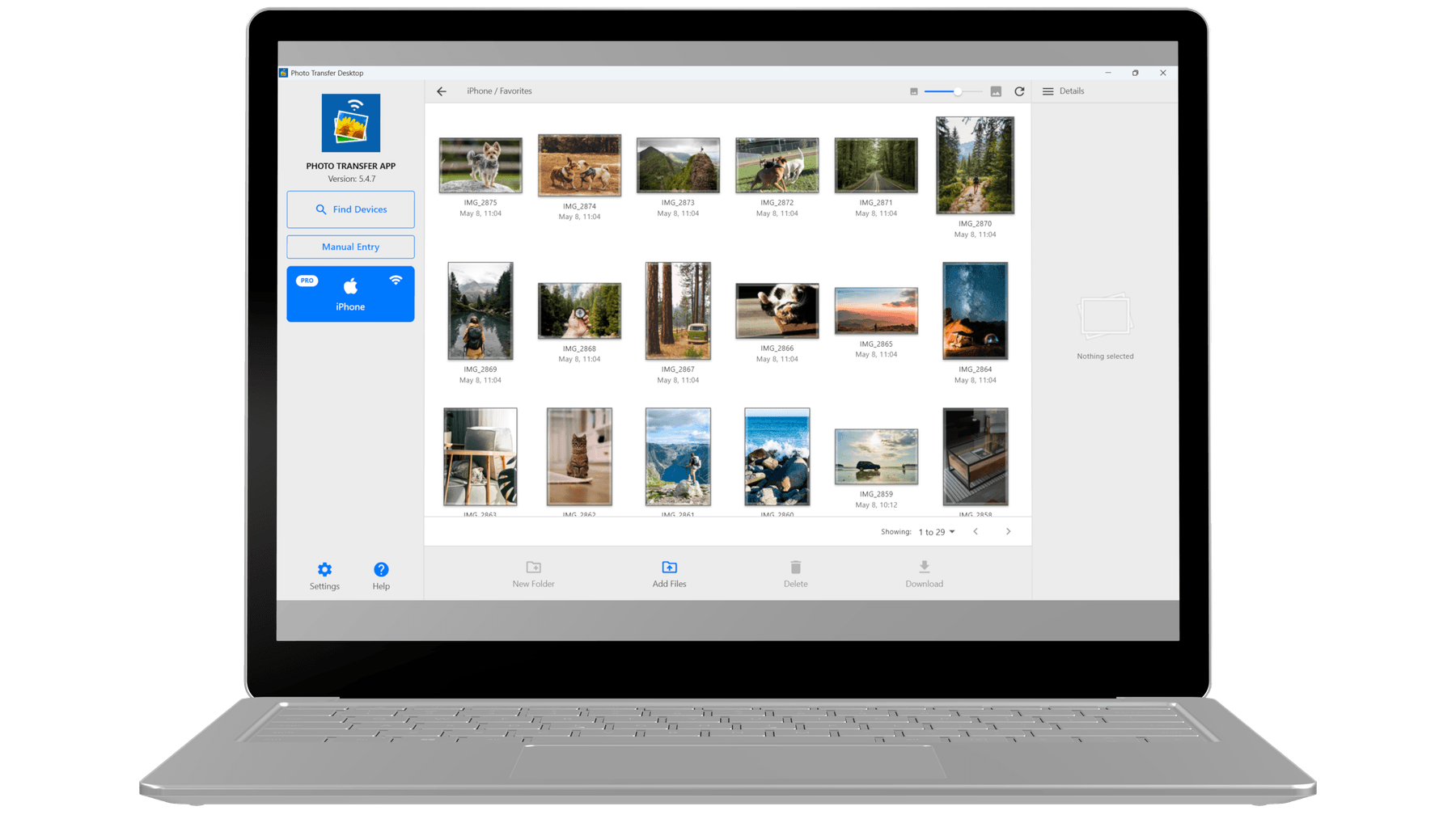
Built for Windows
Photo Transfer for Windows is distributed through the Microsoft Store — sandboxed, code-signed, and auto-updating, with no SmartScreen warnings or admin prompts. It runs on Windows 10 and 11, on both x64 and ARM64 devices, and saves received photos to any folder you pick. No iTunes, no drivers, no MTP.
No iTunes, no drivers
The historic pain of getting photos off an iPhone onto a Windows PC is gone. No iTunes, no Apple Mobile Device Support, no MTP drivers, no phone-specific software. Just install Photo Transfer.
Trusted Microsoft Store app
Distributed through the Microsoft Store: sandboxed, code-signed, and auto-updating. Windows SmartScreen clears it out of the box — no admin dialogs, no unknown-publisher warnings.
Windows 10, 11, x64 and ARM
Runs natively on Windows 10 (version 1809 and later) and Windows 11 — on both x64 and ARM64 devices like the Surface Pro X and newer Copilot+ PCs.
Save to any folder
Pick your Pictures folder, OneDrive, an external drive, a network share — wherever you want received photos to land. No hidden app cache you have to hunt for later.
Local WiFi, no cloud detour
Your photos move directly from phone to PC over WiFi. Nothing touches Apple's servers, Google's servers, or ours. No upload quota, no internet required beyond the local network.
Works with every phone
iPhone, iPad, Android phones, Android tablets — all transfer to your Windows PC the same way. One workflow, no matter which phone the photos are coming from.
How it works on Windows
Three steps. No cables, no cloud, no account.
- 1
Install from the Microsoft Store
Free download. One click from the Microsoft Store — no admin rights, no SmartScreen warnings, no cleanup if you change your mind.
- 2
Open the app on your phone and PC
Launch Photo Transfer on both devices. As long as your phone and PC share a WiFi network, they find each other automatically — no pairing, no codes.
- 3
Pick photos and receive
Select photos and videos on your phone, choose a folder on your PC, and transfer at full resolution. EXIF, GPS, and timestamps all preserved.
System requirements
- Windows version
- Windows 10 (version 1809 or later) and Windows 11
- Architecture
- x64 and ARM64
- Network
- Local WiFi network shared with the phone
- Permissions
- Local Network access — no account, no cloud storage required
- Price
- Free on the Microsoft Store. Optional PRO unlock for unlimited transfers and cloud backup.
- Languages
- English
Frequently asked
Common questions from Windows users.
Do I need iTunes to transfer iPhone photos to my PC? expand_more
Does it work on Windows 10? expand_more
Does it work on ARM Windows devices like the Surface Pro X? expand_more
Where do my photos go after a transfer? expand_more
How is this different from Phone Link (Your Phone)? expand_more
Is the Microsoft Store version safe and auto-updated? expand_more
Does the free version have any limits? expand_more
Guides for Windows
Step-by-step walkthroughs for the most common transfer scenarios.
Your photos belong to you.
Move them freely.
Join over 3 million users who transfer photos and videos the fast, private way — no cables, no cloud, no hassle.